On this page
- 01How Stremio subtitles work
- 02How to turn on subtitles in Stremio
- 03How to set your default subtitle language and style
- 04How to add OpenSubtitles to Stremio
- 05Best subtitle addons for Stremio
- 06How to choose the right subtitle file
- 07Using Stremio subtitles with Torrentio
- 08How to fix out-of-sync Stremio subtitles
- 09How to add your own subtitle file (.srt)
- 10Why are there no subtitles on Stremio?
- 11Stremio subtitles not working? Quick fixes
- 12Stremio subtitles on different devices
- 13Best Stremio subtitles settings for each device
- 14How to turn off subtitles in Stremio
- 15Subtitles for anime and foreign films
- 16Subtitles for TV series
- 17Subtitles in Urdu, Hindi and other less common languages
- 18Do you need to download subtitles for Stremio?
- 19Are subtitle addons safe?
- 20Common myths about Stremio subtitles
- 21Stremio subtitles checklist
- 22Final words
- 23FAQs
Stremio subtitles come from addons, not from the app itself. That is why they sometimes appear in the wrong language, drift out of sync or do not show up at all. This guide explains how subtitles work in Stremio, how to turn them on, how to fix timing, how to add your own .srt file and which subtitle addons are worth installing in 2026. We checked every setting and shortcut against Stremio's own help center and settings on November 3, 2026.
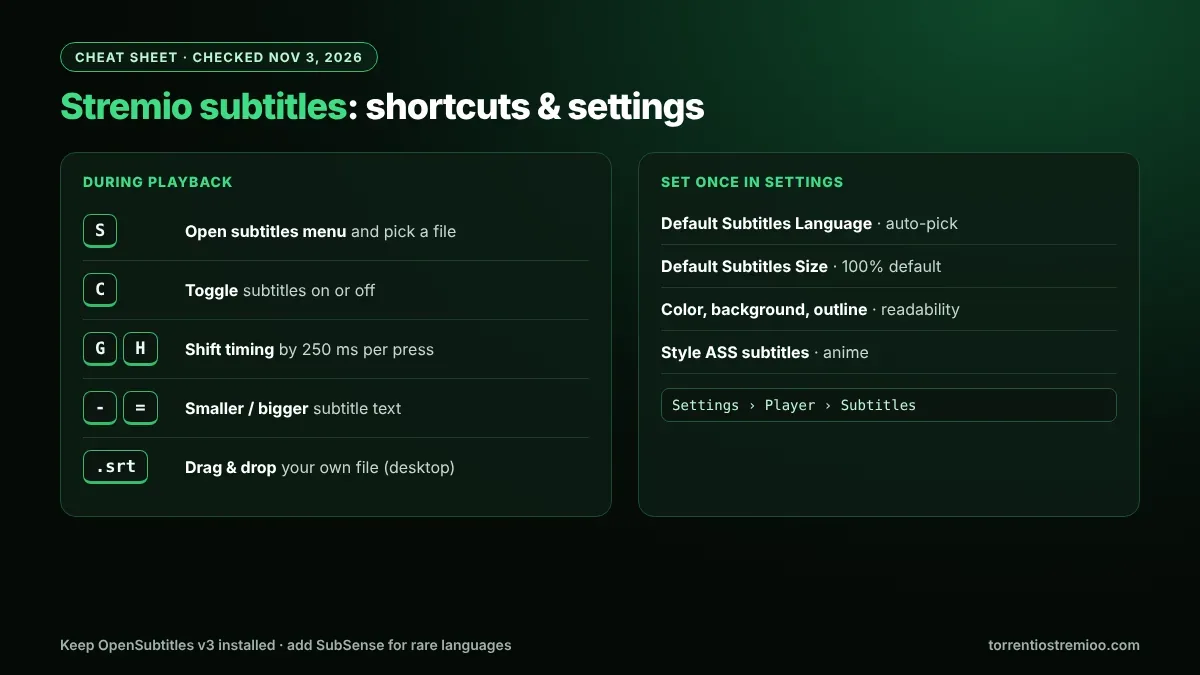
Quick answer: make sure the OpenSubtitles v3 addon is installed, set your language under Settings › Player › Default Subtitles Language, then open the subtitles menu during playback (press S on a computer) and pick a file. If the text is out of sync, press G or H to shift it by 250 ms per press.
How Stremio subtitles work
Stremio does not create subtitles. It shows subtitle files from three places:
| Source | What it is | Where you see it |
|---|---|---|
| Subtitle addons | Online services such as OpenSubtitles v3 that search subtitle databases for the title you are watching | Listed by language in the subtitles menu |
| Embedded subtitles | Subtitle tracks built into the video file itself, common in MKV releases | Listed alongside addon subtitles when the file has them |
| Your own files | An .srt or similar file you add yourself | Desktop drag and drop, or an upload addon on other devices |
Stremio's help center explains it simply: subtitles come from the OpenSubtitles service, so Stremio uses publicly available, community-made files. If nobody has uploaded a subtitle for a title in your language, Stremio cannot show one. Knowing this saves a lot of frustration when working with Stremio subtitles.
How to turn on subtitles in Stremio
- Start playing a movie or episode.
- Open the subtitles menu: press S on a computer, or tap the subtitles icon in the player on phones and TVs.
- Pick a language, then pick one of the subtitle files listed under it.
- Press C at any time to turn subtitles on or off.
These steps work the same for Stremio subtitles on every device. If the menu is empty, you most likely have no subtitle addon installed. Jump to the section on adding OpenSubtitles below.
How to set your default subtitle language and style
Instead of choosing Stremio subtitles every time, set your defaults once. Open Settings › Player and look for the Subtitles group. In Stremio Web we found these options:
| Setting | What it does |
|---|---|
| Default Subtitles Language | Stremio picks a subtitle in this language automatically |
| Default Subtitles Size | Text size, 100% by default |
| Subtitles color | Text color |
| Subtitles background color | A box behind the text, transparent by default |
| Subtitles outline color | Outline around each letter for better contrast |
| Style ASS subtitles | Applies your style to ASS/SSA subtitles, which are common in anime |
On a TV, a slightly larger size and a dark background make Stremio subtitles much easier to read from the sofa. You can also change size during playback: press - to make text smaller and = to make it bigger.
How to add OpenSubtitles to Stremio
OpenSubtitles v3 (version 1.0.0) is installed by default in every new Stremio account and covers movies and series. If you removed it, or your subtitles menu is empty, add it back:
- Open Addons in Stremio.
- Switch from Installed to All.
- Search for OpenSubtitles v3 and press Install.
- Restart playback of your video and open the subtitles menu again.
You can also visit the official OpenSubtitles v3 addon page. Note that this is the official Stremio integration, so it needs no OpenSubtitles account.
Best subtitle addons for Stremio
OpenSubtitles v3 covers most popular movies and series in common languages, and it is the backbone of Stremio subtitles for most users. For rare languages, anime or better-timed files, add one of these. Star counts come from stremio-addons.net on November 1, 2026:
| Addon | Stars / users | Best for |
|---|---|---|
| OpenSubtitles v3 | Default addon | Everyday use, no setup |
| opensubtitles PRO | 397 stars | Ad-free and spam-free OpenSubtitles results |
| SubSense | 143 stars, 171K users | Many sources at once, anime, rare languages |
| SubSource Subtitles | 157 stars | Files from SubSource.net |
| SubDL Subtitles | 127 stars | Files from SubDL.com |
| Stremio Community Subtitles | Open source | Uploading your own files and using them on any device |
One extra subtitle addon on top of OpenSubtitles v3 is usually enough. More addons mean longer lists to scroll through. For streams, catalogs and more, see our full guide to the best Stremio addons.
How to set up SubSense
SubSense is the most flexible option for Stremio subtitles because it searches many databases in one go. When we opened its configure page, it showed version 2.4.2 and more than 171,000 users. Setup takes two minutes:
- Open the SubSense configure page.
- Choose up to 5 languages.
- Keep Maximum Subtitles per Language at 10, or lower it for a shorter list.
- Tick Keep ASS/SSA subtitles format if you watch anime with styled subtitles.
- Press Install Addon and confirm in Stremio.
Without any keys, SubSense already searches OpenSubtitles, Gestdown, AnimeTosho, YIFY, BetaSeries and TVsubtitles. You can add free API keys for SubSource and SubDL on the same page for even more results.
How to choose the right subtitle file
The subtitles menu often lists several files for the same language. Picking the right one is the fastest way to get Stremio subtitles that fit perfectly:
- Match the release name. If your stream says WEB-DL, BluRay or a group name such as YTS, pick a subtitle file with the same words in its name.
- Watch for HI or SDH. These "hearing impaired" files include sound descriptions such as [door slams]. Great if you need them, distracting if you do not.
- Forced subtitles only translate foreign-language parts of a film. Do not choose them if you want the whole dialogue.
- Try the first two or three files. Popular files rise to the top, and one of the first few is usually well timed.
Using Stremio subtitles with Torrentio
Torrentio shows the full release name of every stream, which makes matching subtitles easy. Open a title, note the release name of the stream you pick (for example a YTS 1080p BluRay), start playback, then choose a subtitle file with the same name. If you watch mostly in another language, set a priority language in Torrentio so streams with that audio appear first, and you may not need Stremio subtitles at all. Setting up Torrentio for the first time? Follow our guide on the Torrentio addon link.
How to fix out-of-sync Stremio subtitles
Subtitles drift when the file was made for a different release of the same movie, for example a version with a different intro or frame rate. Fix it in this order:
- Try another subtitle file. Pick one whose name matches your stream's release name (for example the same group or "WEB-DL" tag). This fixes most timing problems instantly.
- Adjust the timing. Open the subtitles menu and use the + and - timing buttons, or press G and H on a computer. According to Stremio's help center, each press moves the subtitles by 250 milliseconds.
- Try another stream. If no subtitle matches, a more common release usually has better-synced files.
Tip: if the text appears too early, move it later, and if it appears after people speak, move it earlier. Four presses equal one full second.
How to add your own subtitle file (.srt)
On Windows, Mac and Linux
Stremio's help center confirms that the desktop app accepts external subtitles: simply drag and drop the subtitle file into the Stremio player window while the video is playing. The file appears in the subtitles menu straight away.
On Android, TV, iPhone and the web
Drag and drop only works on desktop, which is a common complaint about Stremio subtitles on phones and TVs. On other devices, use the open-source Stremio Community Subtitles addon. Its developer describes it as a way to use custom subtitles on any device, "something normally only possible on desktop Stremio". You create a free account, upload your file, and it becomes available on all of your devices through the addon. Files are matched to the exact video by its hash, so the right subtitle loads for the right release.
Why are there no subtitles on Stremio?
This is the most searched question about Stremio subtitles, and the answer is almost always one of these four:
- No subtitle addon is installed. Someone removed OpenSubtitles v3, or a new account was set up without it.
- Nobody has made subtitles for that title in your language. Very new or very obscure releases often have none yet.
- The subtitle exists, but not for your release. Try another stream of the same movie.
- The default language is set to Disabled or to a language that has no files for this title.
Stremio subtitles not working? Quick fixes
| Problem | Likely cause | Fix |
|---|---|---|
| Subtitles menu is empty | No subtitle addon installed | Install OpenSubtitles v3 from Addons › All |
| No subtitles in my language | Nobody uploaded one for this title | Add SubSense or SubDL, or try a more popular release |
| Subtitles out of sync | File made for a different release | Choose a matching file or shift timing with G and H |
| Subtitles never appear automatically | Default language not set or set to Disabled | Settings › Player › Default Subtitles Language |
| Subtitles missing in an external player | External players such as VLC do not always receive Stremio's subtitles | Turn off "Play in external player" or load the file inside that player |
| Anime subtitles look plain | ASS styling removed | Enable "Style ASS subtitles" and SubSense's ASS/SSA option |
| Text too small on TV | Default size | Raise Default Subtitles Size or press = during playback |
Still stuck? Restart the video after any change: Stremio usually requests subtitles when playback starts, so a newly installed addon shows up the next time you press play.
Stremio subtitles on different devices
- Windows, Mac and Linux: full control, keyboard shortcuts, and drag and drop for your own files.
- Android phones: tap the subtitles icon in the player. Defaults live in Settings, where you can also set Default subtitles to Disabled if you never want them.
- Android TV and Firestick: open the player menu with the remote and select Subtitles. Set your language once in Settings so you rarely need the menu. Installing Stremio on a Fire TV? See our Firestick guide.
- iPhone, iPad and Stremio Web: addon subtitles work as usual in the browser. Use Stremio Community Subtitles if you need your own files.
Because addons are saved to your Stremio account, a Stremio subtitles addon installed on your phone automatically appears on your TV too. New to the app? Our guide on how to use Stremio covers the basics.
Best Stremio subtitles settings for each device
| Device | Size | Background | Extra tip |
|---|---|---|---|
| Phone | 100% | Transparent | Use an outline color so text stays readable on bright scenes |
| Laptop or PC | 100% to 125% | Transparent or light shade | Use G and H for quick timing fixes |
| TV or Firestick | 125% to 150% | Dark shade | Set the default language so you rarely open the menu with the remote |
| Projector | 150% or more | Dark shade | Pick a yellow or white text color for contrast |
These are starting points, not rules. Change one setting at a time and check a dark and a bright scene before you settle on your Stremio subtitles style.
How to turn off subtitles in Stremio
- For one video: press C or choose Off in the subtitles menu.
- For good on Android: Stremio's help center says to open Settings, tap Default subtitles and select Disabled.
- Everywhere at once: Stremio's older help article says you can uninstall the OpenSubtitles addon, which removes subtitles on every device.
Uninstalling works, but you lose subtitles for every title, so the per-video and Android options are usually the better choice.
Subtitles for anime and foreign films
Anime fans get the best results from SubSense with AnimeTosho enabled (it is on by default) and the ASS/SSA option ticked, together with Stremio's "Style ASS subtitles" setting. For foreign films, pair a subtitle addon with a stream addon that prefers your audio language. In Torrentio you can set a priority language on the configure page, which we explain in our Torrentio configure guide.
Spanish, Portuguese, Arabic and other languages are widely available for popular titles, but less common films may only have English. Stremio's help center notes that subtitles are created by the community, so availability depends on what volunteers have uploaded.
Subtitles for TV series
For series, Stremio subtitles are fetched per episode. Once your default language is set, Stremio picks a matching file for every new episode automatically, so binge-watching with Auto-Play Next Episode keeps subtitles on. If one episode is out of sync, simply pick another file or adjust the timing for that episode.
Subtitles in Urdu, Hindi and other less common languages
English, Spanish, Portuguese, French and Arabic subtitles are easy to find for popular titles. Urdu, Hindi, Bengali and many other languages have far fewer files on OpenSubtitles. Add SubSense and select up to five languages, for example Urdu, Hindi and English as a fallback, so you always get something readable. For Indian films, an audio track in your language is often easier to find than subtitles, so also set a priority language in your stream addon.
Do you need to download subtitles for Stremio?
No. Subtitle addons fetch files automatically when you press play, so there is nothing to download. You only need to download a file yourself when no addon has a good match. In that case, get an .srt file from a subtitle site, then drag it into the desktop player or upload it with Stremio Community Subtitles.
Are subtitle addons safe?
Subtitle addons only send text files, so they are among the safest Stremio addons you can install. Still, follow two simple rules. Install them only from their official configure page or a trusted catalog, and never paste a debrid API key into a subtitle addon, because it has no reason to ask for one. If an addon asks for an API key from a subtitle site such as SubDL or SubSource, create a free key on that site instead of reusing any password. For general privacy tips that also apply to Stremio subtitles addons, read our safety guide.
Common myths about Stremio subtitles
- "Stremio has no subtitles." It does. They come from addons, and OpenSubtitles v3 is installed by default.
- "More subtitle addons means better subtitles." Not really. One good extra addon gives more choice. Five give you long lists and slower loading.
- "Bad timing means a broken app." Almost always it is a file made for a different release. Choose a matching file first.
- "You need a paid account." No. OpenSubtitles v3 and SubSense work for free, and API keys for extra sources are optional.
Stremio subtitles checklist
- OpenSubtitles v3 installed.
- Default subtitle language set under Settings › Player.
- Size, color and background adjusted for your screen.
- One extra addon such as SubSense for rare languages or anime.
- You know G and H for timing and C to toggle subtitles.
Tick these five boxes and your Stremio subtitles will work on every device without fuss.
Final words
Good Stremio subtitles come down to three steps: keep OpenSubtitles v3 installed, set your default language and style once, and add one extra addon such as SubSense for better coverage. When timing is off, choose a matching file first and use G and H second. With that setup, subtitles just work on every device you use.
Want to build the rest of your setup? Start with our Torrentio install guide or the complete Torrentio Stremio guide.
Frequently Asked Questions
How do I get subtitles on Stremio?
Keep the default OpenSubtitles v3 addon installed, set your language under Settings, Player, Default Subtitles Language, then open the subtitles menu during playback (press S on a computer) and pick a file.
Why are there no subtitles on Stremio?
Usually no subtitle addon is installed, nobody has uploaded subtitles for that title in your language, or your default language is set to Disabled. Reinstall OpenSubtitles v3 or add SubSense for more sources.
How do I sync subtitles in Stremio?
First try another subtitle file that matches your stream release name. Then use the timing buttons in the subtitles menu, or press G and H on a computer. Each press moves the subtitles by 250 milliseconds.
What is the best subtitle addon for Stremio?
OpenSubtitles v3 covers most needs and is installed by default. For rare languages or anime, SubSense searches many sources at once, and opensubtitles PRO gives ad-free results.
Can I add my own subtitle file to Stremio?
Yes. On Windows, Mac and Linux, drag and drop the .srt file into the player window. On Android, TV, iPhone and the web, upload it with the Stremio Community Subtitles addon.
How do I turn off subtitles in Stremio?
Press C or choose Off in the subtitles menu for one video. On Android, open Settings, tap Default subtitles and select Disabled to keep them off.