On this page
- 01What is Stremio and how does it work?
- 02How to use Stremio in 7 steps
- 03Step 1: Install Stremio on your device
- 04Step 2: Create a free Stremio account
- 05Step 3: Learn the six main Stremio menus
- 06Step 4: Check the default addons
- 07Step 5: How to use Stremio with Torrentio and other stream addons
- 08Step 6: Find something and press play
- 09Step 7: Set up subtitles and audio
- 10Useful Stremio settings most beginners miss
- 11Stremio keyboard shortcuts
- 12How to use Stremio's Library and Calendar
- 13How to use Stremio on a PC (Windows, Mac and Linux)
- 14How to use Stremio on Android phones
- 15How to use Stremio on a TV or Firestick
- 16How to use Stremio on iPhone and iPad
- 17How to use Stremio in a web browser
- 18How to use Stremio for free
- 19A beginner's addon checklist
- 20Common beginner mistakes and quick fixes
- 21Is Stremio safe and legal?
- 22How to use Stremio: your first-day checklist
- 23Final words
- 24FAQs
Want to know how to use Stremio without wading through long Reddit threads? This guide takes you from a fresh install to your first movie in plain English. We went through every menu, setting and default addon of Stremio Web (version 6.0.7) on October 31, 2026, so the names and steps below match what you see on screen today.
Quick answer: install Stremio from stremio.com/downloads, create a free account, open Addons and add a stream addon such as Torrentio, then search for a movie, open it and pick a stream from the list. Use Settings to set your subtitle language, and the Library to keep track of what you watch.
What is Stremio and how does it work?
Stremio is a free media center for movies, series, channels and live TV. The app itself hosts no videos. Everything you see comes from addons: small online services that add catalogs (lists of titles), metadata (posters, descriptions, episodes), subtitles or streams (the actual video links).
That is the key idea behind how to use Stremio well. A fresh install shows posters and trailers, but most titles have no playable streams until you add a stream addon. Once you understand this, everything else in the app makes sense.
How to use Stremio in 7 steps
- Install Stremio on your device.
- Create a free account so your setup syncs.
- Learn the six main menus.
- Check the default addons.
- Add a stream addon such as Torrentio.
- Search for a title and play a stream.
- Set up subtitles, audio and a few useful settings.
Each step is explained below. The whole setup takes about 15 minutes.
Step 1: Install Stremio on your device
The first part of how to use Stremio is getting the right version. Download Stremio only from the official Stremio downloads page or your device's official app store. We checked the page on October 31, 2026: On Android without Google Play, follow our Stremio APK guide.
| Device type | Options on the official page |
|---|---|
| Computer | Windows (Stremio 5), macOS and Linux |
| Phone and tablet | Android (Google Play or APK 2.4.0) and iOS (web version, or the full app through AltStore PAL in Europe, Brazil and Japan) |
| TV | Android TV (Google Play or APK 1.12.0), Apple TV, Samsung, LG, Sony, Philips and Hisense TVs |
| Other | Steam Deck, Raspberry Pi 4 and 5, VR headsets |
| Browser | Stremio Web at web.stremio.com, no install needed |
Using an Amazon Fire TV Stick? Our Firestick guide shows how to install Stremio there step by step.
Step 2: Create a free Stremio account
When you open Stremio for the first time, you can sign up with an email address, continue with Facebook or Apple, log in to an existing account, or choose Guest login. Stremio is free, and no payment details are needed.
We recommend a real account instead of guest mode. Your addons, Library, watch progress and settings are saved to your account, so when you sign in on your phone, TV or browser, everything is already there. This is the single most useful habit when learning how to use Stremio on several devices.
Step 3: Learn the six main Stremio menus
Stremio's left-hand menu (or bottom bar on phones) has six sections. On a computer you can jump between them with the number keys 1 to 6.
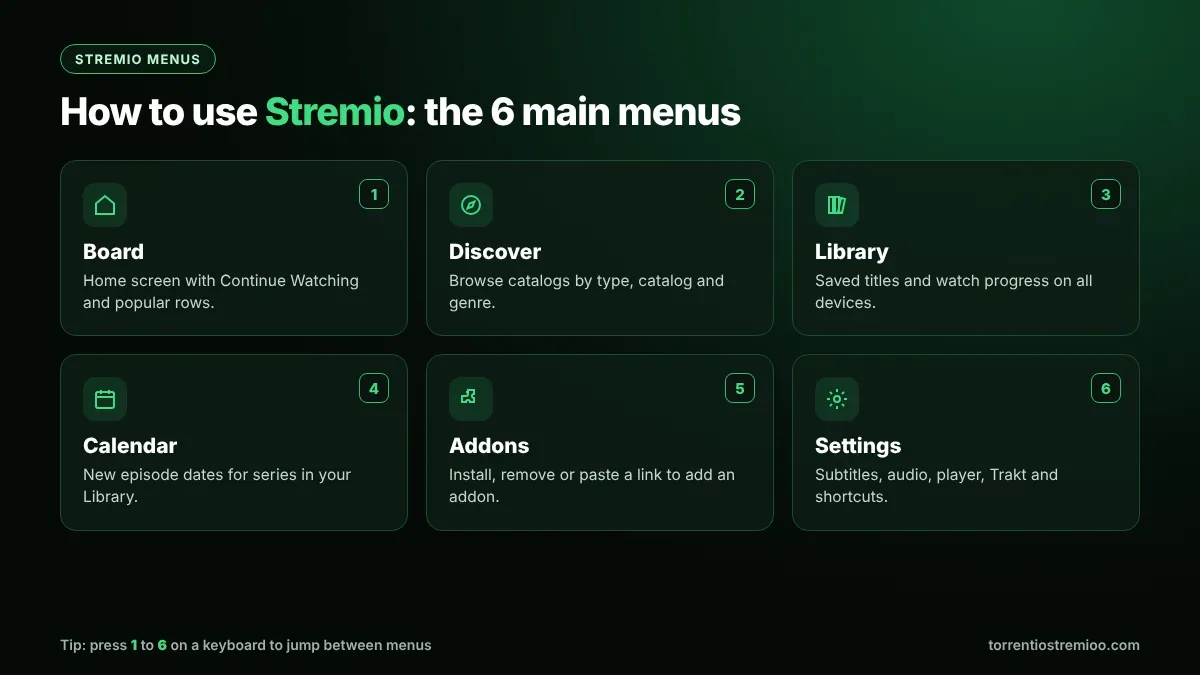
| Menu | What it does |
|---|---|
| Board | The home screen. Shows Continue Watching plus rows from your catalog addons, such as Popular Movies and Popular Series. |
| Discover | Browse full catalogs and filter them by type (movie, series, channel), catalog and genre. |
| Library | Everything you saved or started watching, with your progress. |
| Calendar | Release dates for new episodes of the series in your Library. |
| Addons | See installed addons, browse all addons, or add one by pasting its link. |
| Settings | Account, Trakt, interface, player, subtitles, streaming server and shortcuts. |
At the top of the screen there is also a search bar labelled Search or paste link. It finds titles, and it can also install an addon when you paste an addon link into it.
Step 4: Check the default addons
A fresh Stremio setup comes with six addons already installed. Here is what we found under Addons › Installed:
| Addon | Version | What it adds |
|---|---|---|
| Cinemeta | 3.0.14 | The main movie and series catalogs, posters and episode lists |
| YouTube | 1.30.7 | YouTube channels you follow, ad-free |
| WatchHub | 1.15.0 | Shows which paid services (Netflix, Hulu, Amazon and others) offer a title |
| Public Domain Movies | 1.0.0 | Streams for more than 500 public domain films |
| OpenSubtitles v3 | 1.0.0 | Subtitles for movies and series |
| Local Files | 1.10.0 | Plays .torrent, .mp4, .mkv and .avi files from your own device |
Understanding these defaults is a quiet but important part of how to use Stremio. Keep all of them. Cinemeta in particular powers the Board and search, and OpenSubtitles gives you subtitles. Notice that none of the defaults provides streams for most new movies and series. That is why the next step matters.
Step 5: How to use Stremio with Torrentio and other stream addons
Stream addons are what turn Stremio from a catalog into a player. The most popular one is Torrentio, which is free and searches 25 torrent providers. To add it:
- Open the Torrentio configure page and press Install, or copy the link https://torrentio.strem.fun/manifest.json.
- In Stremio, paste the link into Search or paste link, or open Addons › Add addon.
- Press Install on the addon card.
Our full guide on how to install Torrentio on Stremio has screenshots for every device, and the Torrentio addon link guide explains the link itself. Want other options? Compare them in our list of the best torrent addons for Stremio. For catalogs, subtitles and tracking too, see our full list of the best Stremio addons.
Tip: two or three stream addons are plenty. Every extra addon makes the stream list longer and slower to load.
Step 6: Find something and press play
This is the part of how to use Stremio you will repeat every day:
- Use the search bar, or browse the Board and Discover.
- Click a poster to open its page. For a series, pick a season and episode.
- Stremio now asks every installed stream addon for links. The list on the right shows them grouped by addon, with details such as quality (4K, 1080p), file size and source.
- Click a stream to start playback. Higher-quality files need a faster connection, so pick 1080p if 4K buffers.
When you stop watching, the title appears under Continue Watching on the Board and in your Library, with your position saved. Add series to the Library to see their new episodes in the Calendar.
Step 7: Set up subtitles and audio
Subtitles are a big part of how to use Stremio comfortably, especially for foreign films. Open Settings › Player to set defaults once, instead of changing them for every video:
- Default Subtitles Language: pick your language so Stremio selects matching subtitles automatically.
- Default Subtitles Size, color, background and outline: make text easier to read on a TV.
- Default Audio Track: choose the language Stremio should prefer when a file has several audio tracks.
- Surround sound: turn it on if you have a surround speaker system.
During playback, press S to open the subtitles menu, C to turn subtitles on or off, and G or H to shift the timing if the text is out of sync. Need more help? Read our complete guide to Stremio subtitles.
Useful Stremio settings most beginners miss
Once the basics work, these settings are the next step in learning how to use Stremio the way experienced users do:
| Setting | Where | What it does |
|---|---|---|
| Auto-Play Next Episode | Settings › Player | Starts the next episode automatically, ideal for binge-watching |
| Next video popup duration | Settings › Player | How long the "next episode" popup stays on screen (35 seconds by default) |
| Play in external player | Settings › Player › Advanced | Opens videos in another player such as VLC if a file will not play |
| Trakt Scrobbling | Settings, top section | Syncs what you watch to your Trakt account |
| Interface zoom | Settings › Interface | Makes everything bigger or smaller, from 75% to 175% |
| Blur unwatched episodes image | Settings › Interface | Hides spoilers in episode thumbnails |
| Enable gamepad support | Settings › Interface | Lets you control Stremio with a game controller |
Stremio keyboard shortcuts
Knowing a few shortcuts is one of the fastest ways to learn how to use Stremio on a computer. These are the official shortcuts listed in Settings:
| Key | Action |
|---|---|
| Space | Play or pause |
| Right / Left arrow | Seek forward or back 10 seconds (hold Shift for 3 seconds) |
| Up / Down arrow | Volume up or down |
| M | Mute |
| F | Full screen |
| C / S | Toggle subtitles / open subtitles menu |
| A | Open audio menu |
| [ and ] | Change playback speed |
| Shift + N | Play next episode |
| 1 to 6 | Jump between the main menus |
| Ctrl + / | Show all shortcuts |
How to use Stremio's Library and Calendar
Many beginners never open these two menus, but they are what make Stremio feel like a personal streaming service. Here is how to use Stremio to keep track of everything you watch:
- Add to Library: open any movie or series and press the Library button. It now appears under Library, sorted by type.
- Automatic progress: anything you start watching is saved with your position, so you can stop on the TV and continue on your phone.
- Calendar for series: every series in your Library shows its upcoming episodes in Calendar, so you know when a new one is out.
- Trakt sync: connect Trakt under Settings if you also track shows on other apps.
How to use Stremio on a PC (Windows, Mac and Linux)
The desktop app is the most complete version and the easiest place to learn how to use Stremio. It includes the streaming server for torrents, supports every keyboard shortcut above, and lets you drag a .torrent or video file into the window to play it through the Local Files addon. On Windows, the official page offers Stremio 5 as the current version, with a beta ARM build for newer laptops.
How to use Stremio on Android phones
On Android, install Stremio from Google Play or the official APK, then sign in. The bottom bar holds the same menus as the desktop app. Tap a stream to play it in Stremio's own player, or turn on an external player in Settings if you prefer VLC or MX Player. The Android app includes the streaming server, so torrent streams from Torrentio work without extra setup.
How to use Stremio on a TV or Firestick
The TV apps work like the computer version, but you move with the remote's arrow keys and OK button. Two tips make life much easier:
- Set up addons on your phone or computer first. Sign in to the same account on the TV and everything appears there, so you never have to type long addon links with a remote.
- Keep the stream list short. Limit results per quality in your stream addon. For Torrentio, our Torrentio configure guide shows exactly how.
How to use Stremio on iPhone and iPad
Stremio's download page lists two iOS options: a limited web version and a full app offered through AltStore PAL in Europe, Brazil and Japan. Everywhere else, open web.stremio.com in Safari, sign in and add it to your Home Screen for an app-like experience.
Keep the browser limitation in mind (see the next section): torrent streams usually need a streaming server, so many iPhone users pair Stremio Web with a debrid service. Our guides for Real-Debrid and TorBox explain the setup.
How to use Stremio in a web browser
If you want to know how to use Stremio without installing anything, the browser version is the answer. Stremio Web at web.stremio.com runs in any modern browser with the same menus and settings. The difference is the streaming server, the part of Stremio that turns torrents into a playable video. The desktop and Android apps include it. A browser does not.
In Stremio Web, Settings › Streaming shows the server address http://127.0.0.1:11470/. When we opened it on a computer without the desktop app running, the status said Error. In that state, direct links such as debrid streams still play, but torrent streams do not. Start the Stremio desktop app on the same computer, or use a debrid service, and the problem goes away.
How to use Stremio for free
Stremio itself costs nothing, and so do most addons, including Torrentio. With the free setup, Torrentio streams come from peer-to-peer networks, so speed depends on how many people share a file. A paid debrid service (from about $3 per month) is optional and makes streams start faster, but you do not need one to get started.
See how free and paid setups compare in our Torrentio vs Comet test.
How to use Stremio with a debrid service
A debrid service downloads files to its own fast servers and streams them to you, so playback starts in seconds and nothing is uploaded from your device. To add one, paste its API key on your stream addon's configure page (for Torrentio, choose it under Debrid Provider), reinstall the addon, and look for cached tags such as [RD+] or [TB+] in the stream list. Only add a debrid service once you know how to use Stremio's basic features, because it changes how the stream list looks.
A beginner's addon checklist
Addons are where most problems start, so follow this short checklist whenever you add one:
- Install from the official page only. Copycat sites can change links or collect API keys.
- Keep the defaults. Cinemeta and OpenSubtitles v3 should stay installed.
- Limit stream addons to two or three. More addons mean longer lists and slower loading.
- Remove old versions after reconfiguring. Two copies of the same addon double every result.
- Never share links that contain an API key. Treat them like passwords.
Common beginner mistakes and quick fixes
Almost everyone who learns how to use Stremio runs into at least one of these problems. Each one has a quick fix:
Still stuck? Our Stremio not working guide covers 17 fixes for every device.
| Problem | Cause | Fix |
|---|---|---|
| "No streams" for most titles | No stream addon installed | Add Torrentio or another stream addon (Step 5) |
| Addons missing on the TV | Different account or guest login on the TV | Sign in with the same account everywhere |
| Every stream appears twice | The same addon installed twice | Uninstall the older copy under Addons › Installed |
| Torrents will not play in the browser | No streaming server | Run the desktop app or use a debrid service |
| Subtitles in the wrong language | Default language not set | Settings › Player › Default Subtitles Language |
| Video buffers a lot | File too big for your connection | Pick a 1080p or 720p stream, or use debrid |
Is Stremio safe and legal?
Stremio is a legitimate app with public source code, and the official addons are safe to use. Risk comes from third-party stream addons and the content you choose to watch. Install addons only from their official pages, keep any link that contains a debrid API key private, and follow the laws in your country. Our Torrentio safety guide covers privacy and VPN questions in detail.
How to use Stremio: your first-day checklist
- Stremio installed from the official page or app store.
- Signed in with a real account, not guest mode.
- Default addons kept, including Cinemeta and OpenSubtitles v3.
- One stream addon added, such as Torrentio.
- Default subtitle and audio language set under Settings › Player.
- A favourite series added to the Library, so it shows up in Calendar.
- The same account signed in on your TV and phone.
Tick these seven items and you know how to use Stremio better than most new users. Everything else, from debrid services to extra addons, is optional and can wait until you need it.
Final words
Now you know how to use Stremio from start to finish: install the app, sign in, learn the six menus, add one good stream addon, and set your subtitle and player defaults once. Everything after that is simply searching, pressing play and letting the Library and Calendar keep track for you.
Ready for the next step? Read our complete Torrentio Stremio guide to get the most out of Stremio's best stream addon.
Frequently Asked Questions
Is Stremio free to use?
Yes. Stremio is free to download and use, and most addons, including Torrentio, are free too. Paid debrid services are optional and only make streams start faster.
Do I need an account to use Stremio?
No, you can use Guest login. A free account is better, though, because it saves your addons, Library and watch progress and syncs them to every device where you sign in.
Why does Stremio show no streams?
A fresh Stremio setup has no stream addon for most new movies and series. Add a stream addon such as Torrentio under Addons, then open the title again.
How do I get subtitles in Stremio?
Keep the default OpenSubtitles v3 addon installed and set your language under Settings, Player, Default Subtitles Language. During playback, press S to open the subtitles menu.
Can I use Stremio on iPhone?
Yes. Use Stremio Web at web.stremio.com in Safari and add it to your Home Screen. A full iOS app is offered through AltStore PAL in Europe, Brazil and Japan.
Is there a Stremio app for Roku?
Not on the official downloads page. When we checked on October 31, 2026, it listed Android TV, Apple TV, Samsung, LG, Sony, Philips and Hisense TVs, but no Roku app.